

Video walkthrough
Before you begin
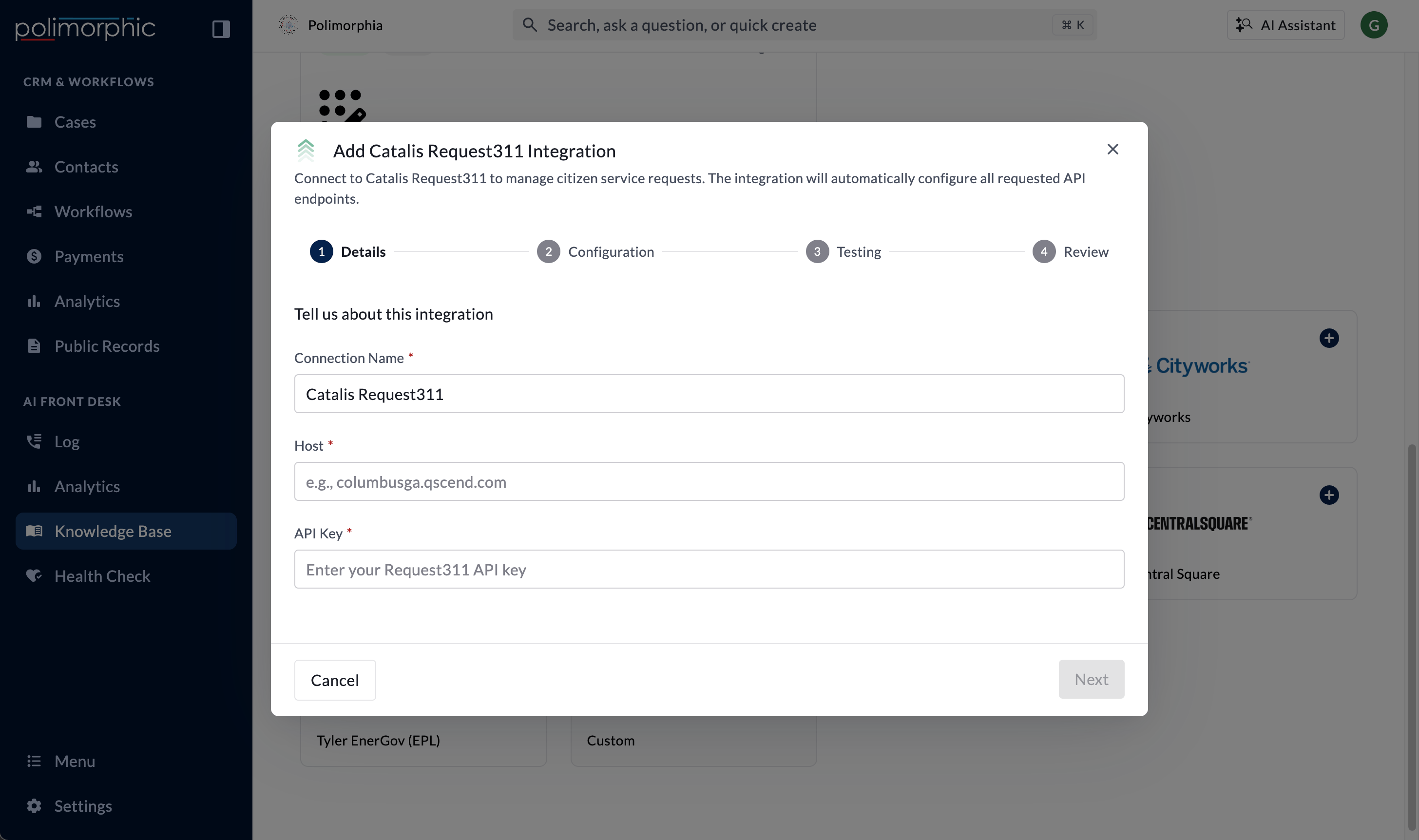
Have these ready:- The organization’s Request311 API host
- A Request311 API key
- The resident fields staff want Polimorphic to collect before creating a request
Vendor provisioning guidance
The organization’s integration owner should lead the request as the authorized Catalis customer contact. Start with the organization’s Catalis support or account representative and ask for:- API access and an API key for the organization’s Request311 or QAlert tenant
- Visit this page: <https://developers.qscend.com/>
- Confirmation of the QScend host
- A sandbox or test site and a read-only test login, when available
- Network allowlisting instructions
- Request-type, category, and form-field documentation needed for configuration
Setup fields
Polimorphic sends the key as an API query credential and stores the secret value in protected credential storage.
Pick what residents need to provide
On Configuration, pick the fields the agent must collect before creating a service request. The default required fields are:- First Name
- Last Name
- Phone
- Address
- Address Line 2
- City
- State
- ZIP Code
- Middle Initial
What the integration can do
Polimorphic configures:- Get Types: Find matching request types.
- Create Case: Create a Request311 service request.
- Get Case: Retrieve an existing request by case ID.
- Get Prompt: Retrieve the public questions or instructions for a request type.
- Get Knowledge Articles: Retrieve articles related to request types.
What the setup test checks
The setup test:- Calls Get Types.
- If a request type is returned, checks Get Prompt and Get Knowledge Articles with that type.
- Leaves Create Case untested because it creates a provider record.
- Leaves Get Case untested because it requires a real case ID and identity information.
Finish setup and test it
Follow Set up a hosted integration to complete the Details, Configuration, and Testing steps. After creation:- Open the connected integration’s Configure dialog.
- Review access for Chat, Voice, Search, Assistant, and Workflows.
- Test request-type lookup with a common service question.
- In an approved sandbox, test case creation.