

Video walkthrough
Before you begin
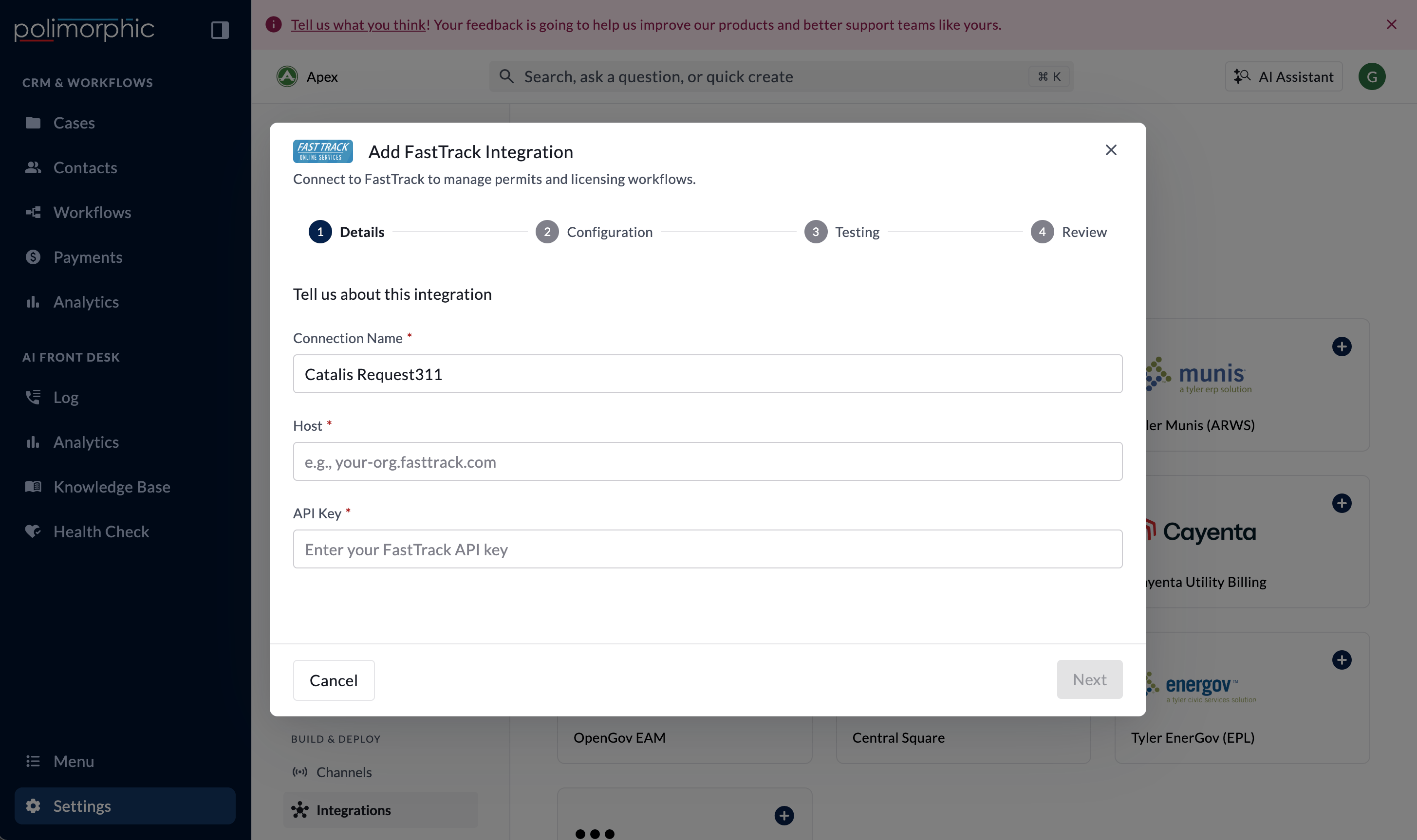
Have these ready:- The organization’s FastTrack API host
- A FastTrack API key
- A safe permit record for end-user testing
Vendor provisioning guidance
Assign an internal API owner who can provide:- The production and test API hosts, when both environments are available
- A dedicated API key with only the access needed for permit lookup
- The supported API version, permit-search inputs, response fields, error behavior, and representative response examples
- Known permit numbers and addresses for safe testing
- A contact who owns API changes when the underlying permitting system is upgraded
Setup fields
Polimorphic sends the key in the provider’s API-key header and stores the secret value in protected credential storage.
What the integration can do
Polimorphic configures:- Search Permits
- Get Permit Details
- Get Permit Information
- Get Permit Reviews
- Get Permit Holds
- Get Permit Inspections
- Get Staff Info
What the setup test checks
The setup test:- Runs Search Permits with a built-in sample address.
- If the search returns a permit number, uses it to test permit details, information, reviews, holds, and inspections.
- Marks the dependent checks untestable when the sample search doesn’t return a permit.
- Does not provide a hosted test result for Get Staff Info.
Finish setup and test it
Follow Set up a hosted integration to complete the shared setup flow. After creation:- Confirm capability access for Chat, Voice, Search, Assistant, and Workflows.
- Test address search with a known permit.
- Test the related permit capabilities with the returned permit number.
- Test identity matching for Get Permit Information.