

Video walkthrough
Before you begin
Have these ready:- The organization’s OpenGov EAM host
- A dedicated OpenGov API username and password
- Confirmation that the account can read and manage the required work orders
- Safe work-order records for testing
Vendor provisioning guidance
OpenGov developer portal: <https://developer.opengov.com/> OpenGov API documentation: <https://developer.opengov.com/docs/overview> The organization’s OpenGov administrator or implementation project owner should lead provisioning. Contact the organization’s OpenGov account representative or support team for help confirming EAM API access. Ask for:- Production and test EAM base URLs, when both environments are available
- A dedicated service account with the least access needed for the intended work-order operations
- The supported API version, available work-order fields, endpoint access, and current REST API documentation
- Safe work-order records and valid priority and department values for testing
- Webhook configuration guidance when completion or status events will be synchronized
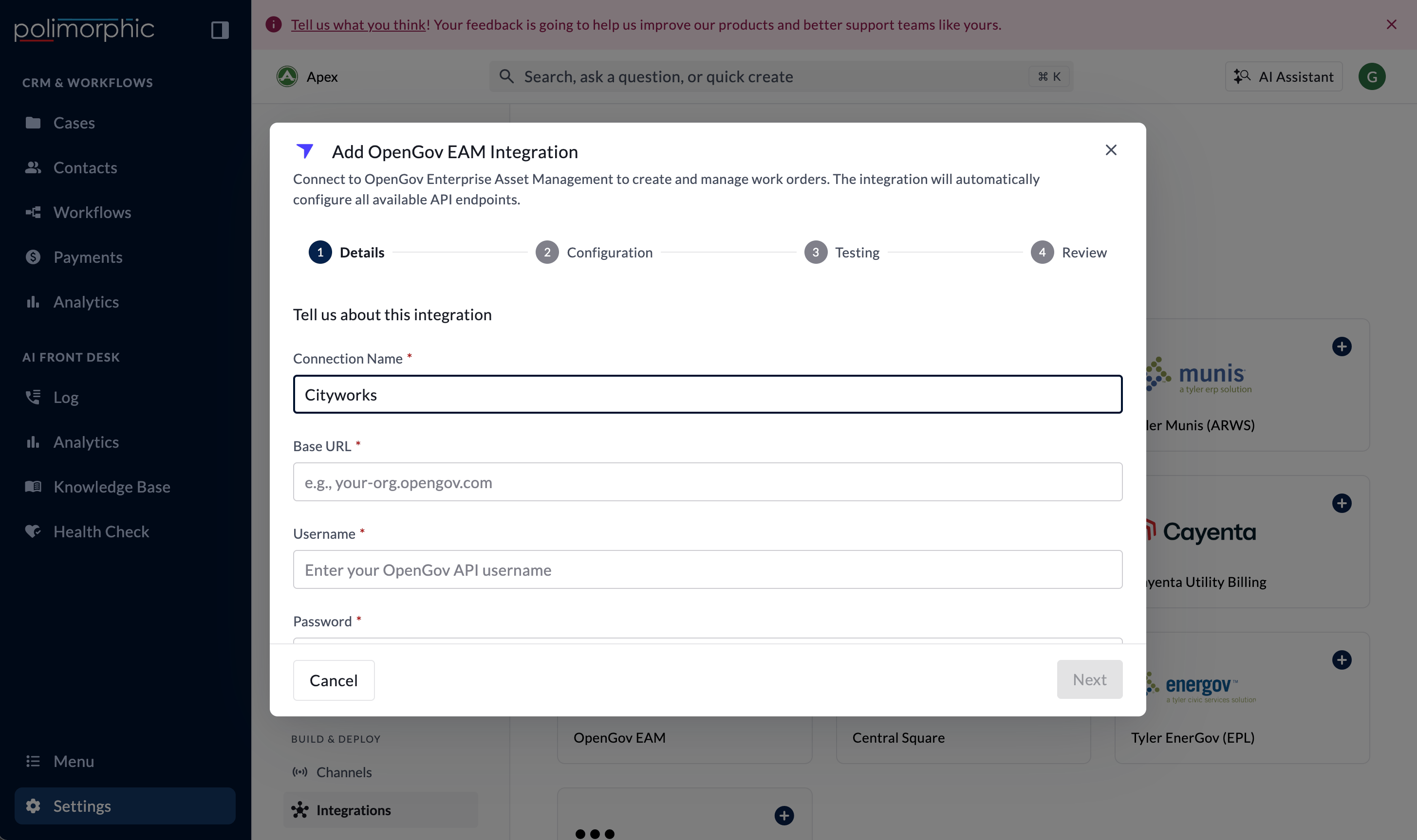
Setup fields
Poli uses the shared username and password with HTTP Basic authentication. The secret value is stored in protected credential storage.
What the integration can do
The setup lists:- Create Work Order
- Update Work Order
- Get Work Order
- List Work Orders
What the setup test checks
The setup test calls List Work Orders. Create Work Order remains untested because it creates provider data. Get and Update Work Order remain untested because setup doesn’t have a valid OID. An untested result is expected for those operations. Use an approved sandbox and disposable work order for later create and update testing.Default access
Update Work Order is initially intended for Workflows. Other generated OpenGov capabilities may start with broader surface access. After creation, open Configure and apply the organization’s approved surface matrix. Avoid enabling write operations in resident-facing Chat or Voice unless the complete confirmation and authorization flow has been approved.Finish setup and test it
Follow Set up a hosted integration to complete the shared flow. After creation:- Test List Work Orders.
- Retrieve a safe work order by OID.
- Create a work order and confirm priority and department handling.
- Update the record and confirm the changed fields.