A single permit renewal can involve a form, an uploaded inspection report, a fee, three emails, a phone call, and two staff reviewers. A case keeps all of that in one place, from the first request to the last step. Anyone on your team can pick it up and see what happened and what comes next, without digging through inboxes or asking a coworker for the history. That means residents get faster, more consistent answers, and your department has a clear record for audits and reports.

Where cases come from

  • A resident fills out an online form on your website.
  • A resident starts a request after asking the AI Front Desk a question.
  • A staff member opens a case by hand, such as after a phone call or a visit to the counter.

What’s on a case

Every case page has a header and a set of tabs.
  • Header: the case name, its status, its tags, and buttons such as Send email, Manage access, and Share case. Cards show the Case Requester (who the case is for), the Case Manager (the staff owner), and how long the case has been open.
  • Tasks: the steps and tasks that need attention now. Switch between My work and All.
  • Workflow tab: every step of the workflow and whether it’s done, active, or waiting.
  • Details tab: the answers from each completed form, field by field.
  • Activity tab: the full history of the case, newest or oldest first.
  • Documents tab: files residents uploaded, files Polimorphic generated, and other files.
  • Members tab: the people on the case, such as the requester and anyone invited to it.
If a case doesn’t follow a workflow, it has no Workflow tab, and the Details tab is called Related Cases.

Filter the Activity tab

You can filter the Activity tab by entry type:

How a case moves

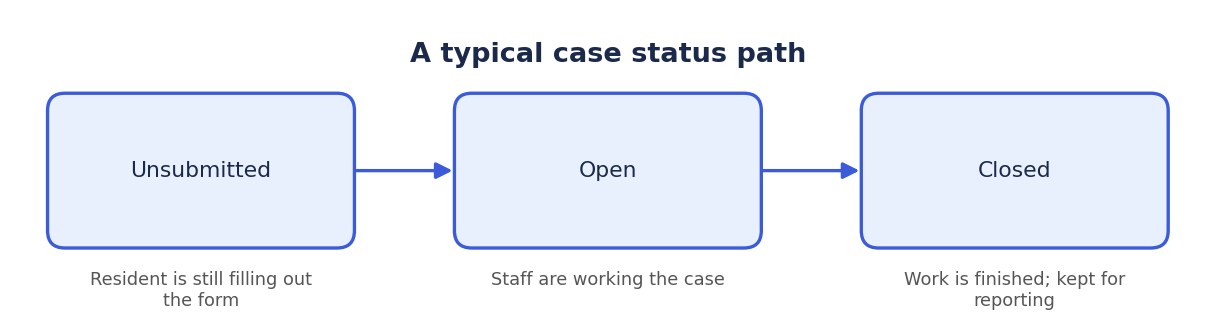
Diagram of a typical case status path: Unsubmitted (resident is still filling out the form), then Open (staff are working the case), then Closed (work is finished and kept for reporting). Most cases start as Unsubmitted while the resident fills out the form. The workflow usually changes the case to Open when staff work begins. When the work is done, the case becomes Closed, either from a workflow step or because a staff member changed the status. Closed cases stay in your records and reports.

Example: a building permit renewal

A homeowner applies to renew a building permit on your website. Polimorphic creates a case named for the renewal and links it to the homeowner’s contact. The workflow assigns the case to the permit desk, and the case shows Your Turn for the permit technician on duty. The technician opens the Details tab to read the application, finds that the inspection report is missing, and emails the homeowner from the case. The homeowner’s reply appears on the Activity tab with the uploaded report, which also appears on the Documents tab. After the fee is paid, the workflow closes the case and sends the renewed permit.